
Applications
Use the Applications tab to install, upgrade, uninstall, and review supported apps from one place. A$PECT UTILS relies on package manager support for these actions, so the available results depend on what WinGet can detect and manage on your system.
- Choose the applications you want to install or upgrade.
- For programs not currently installed, this action will install them.
- For programs already installed, this action will update them to the latest version.
- Click the
Install/Upgrade Selectedbutton to start the installation or upgrade process.
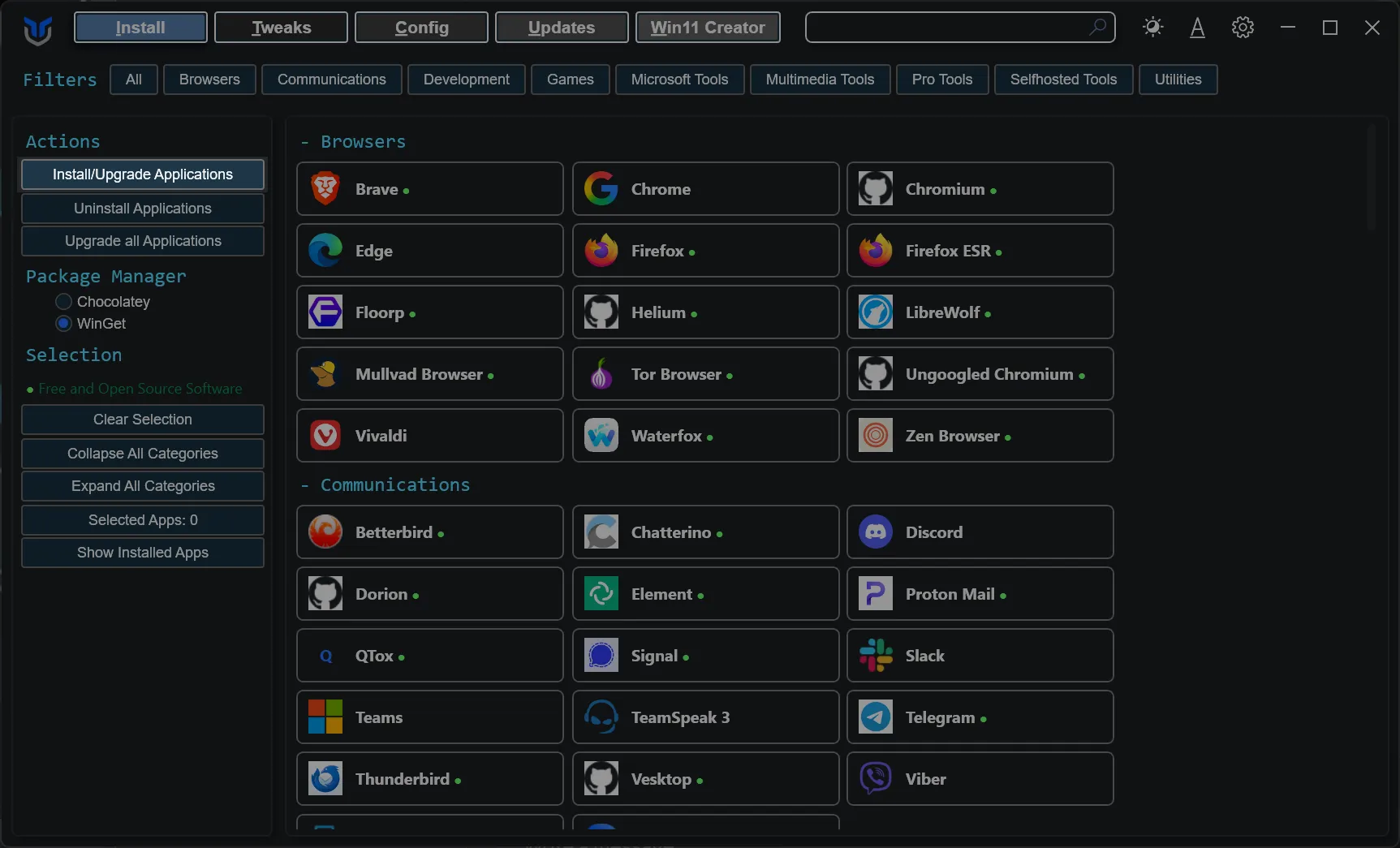
- Select the programs you wish to uninstall.
- Click the
Uninstall Selectedbutton to remove them.
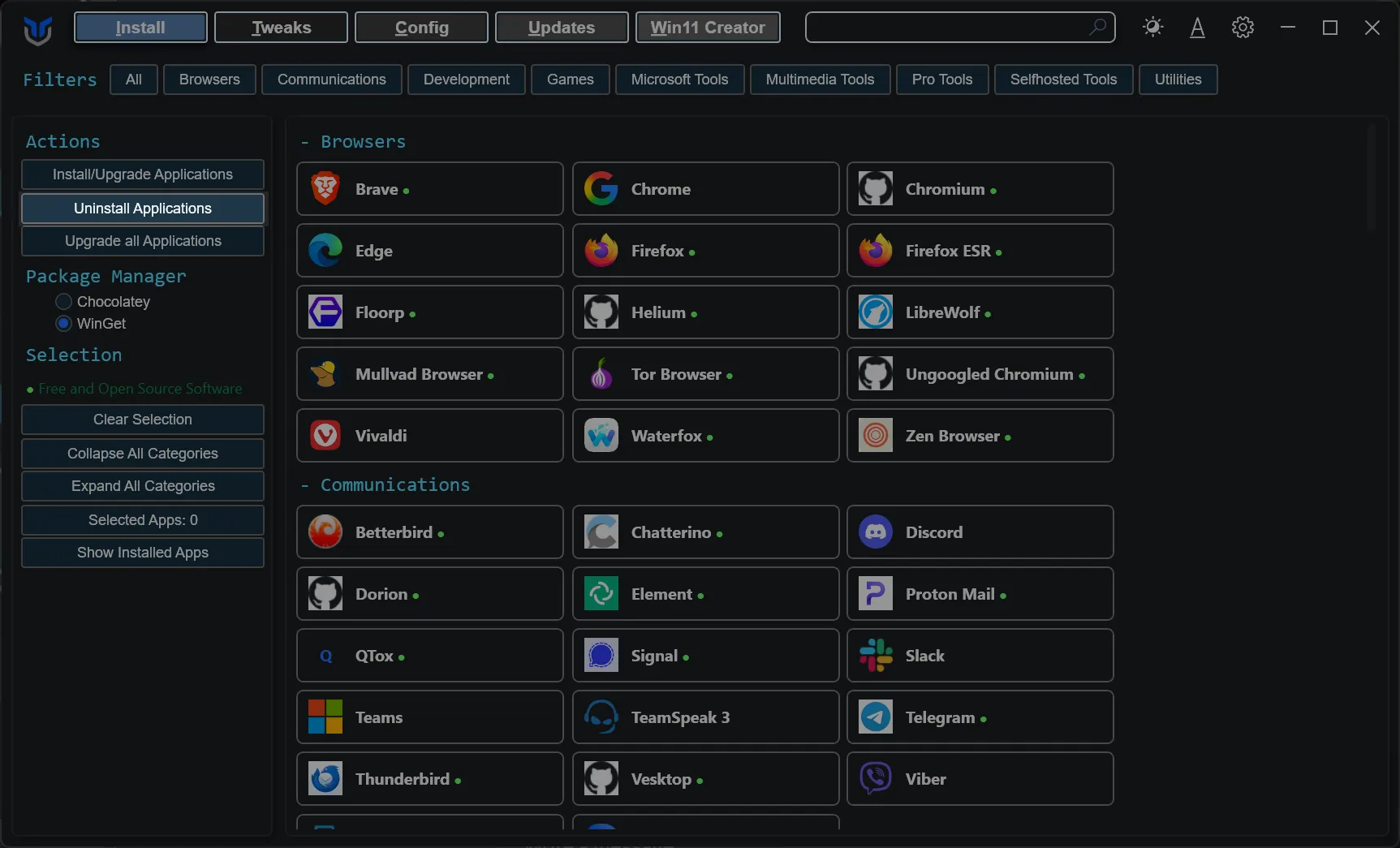
- Simply press the
Upgrade Allbutton. - This upgrades every supported installed program without individual selection.
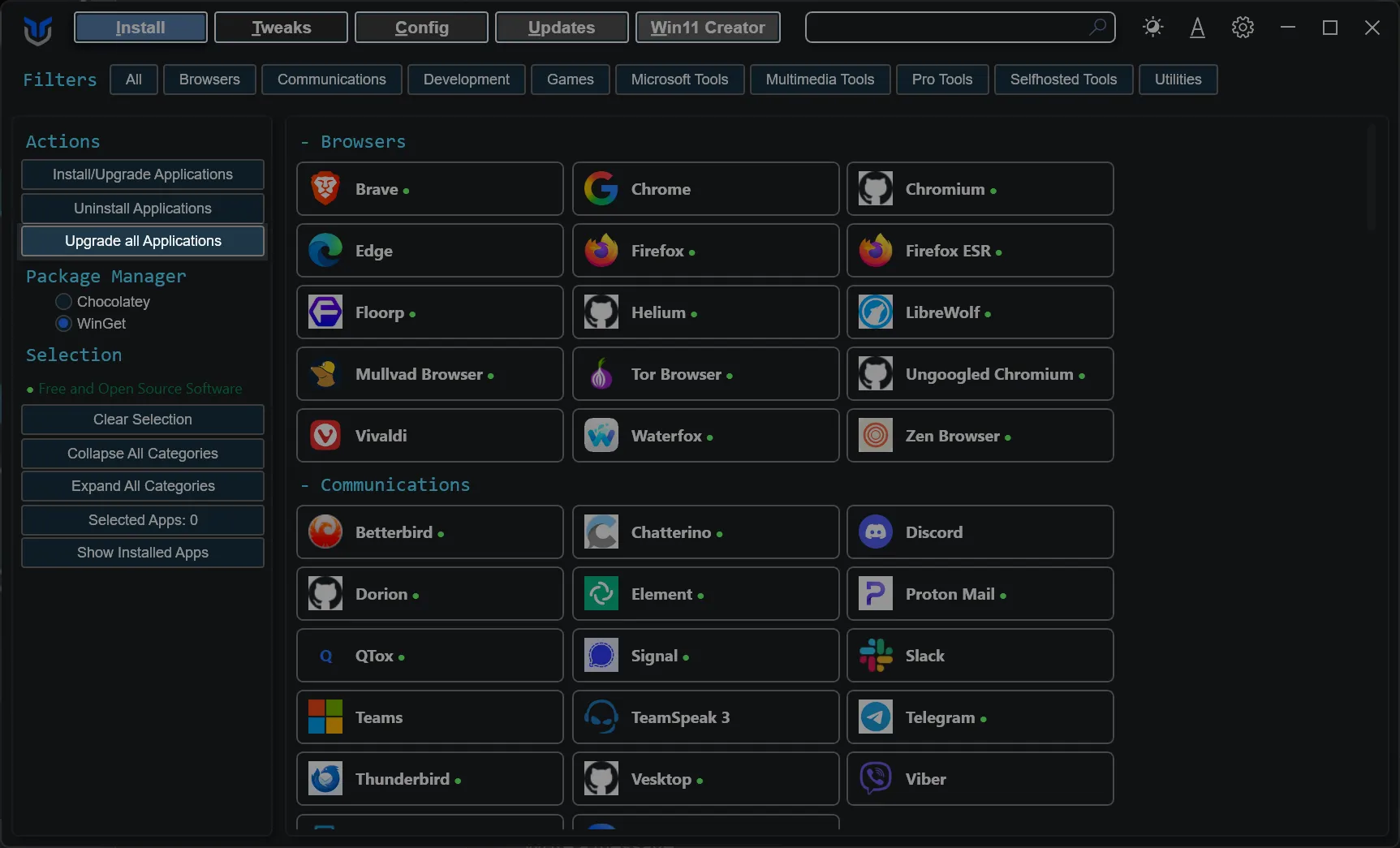
- Click the
Clear Selectionbutton. - This clears all current selections.
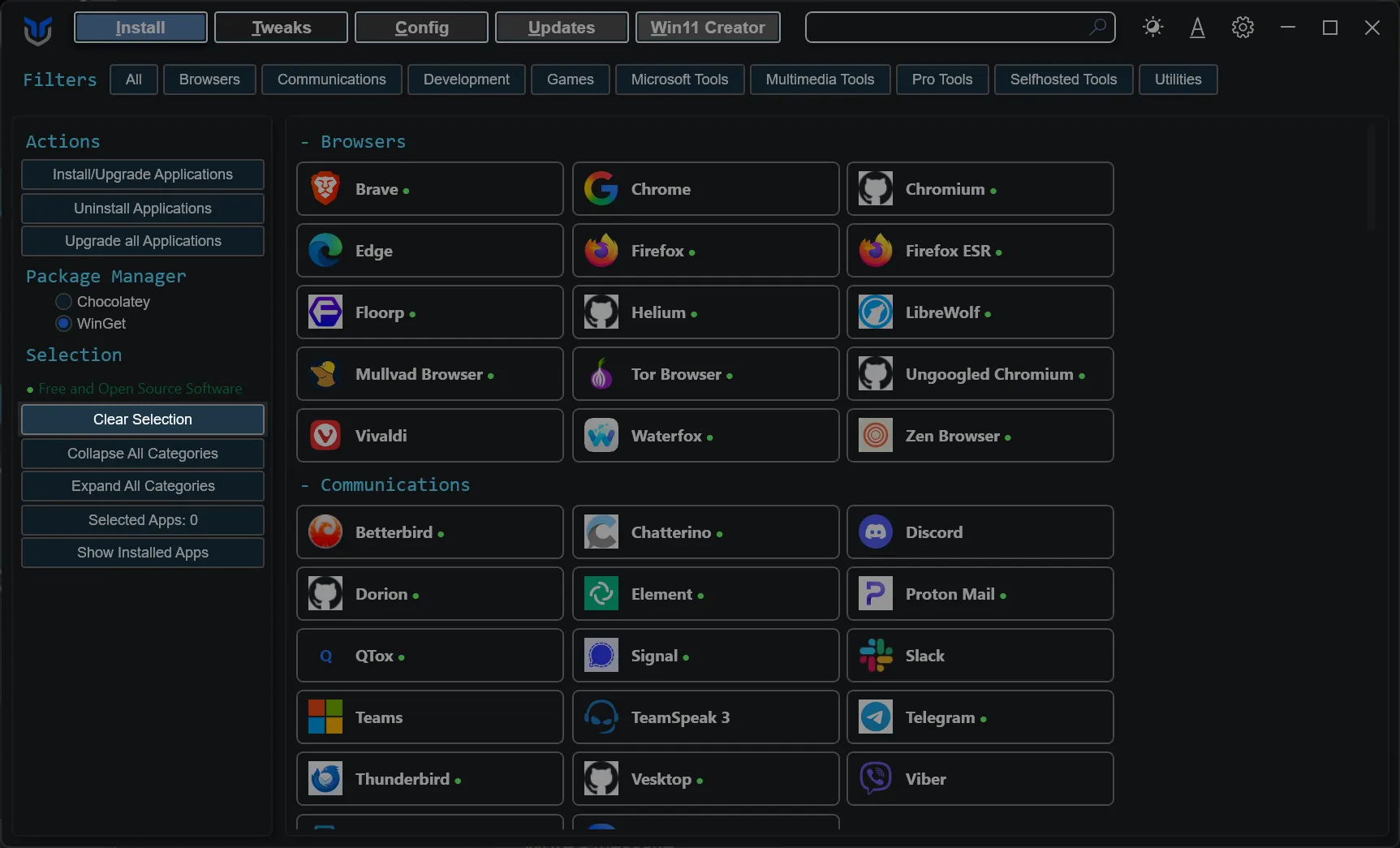
- Click
Collapse All Categoriesto close every category and shrink the list to just the category headers. - Click
Expand All Categoriesto reopen every category and show all applications again.
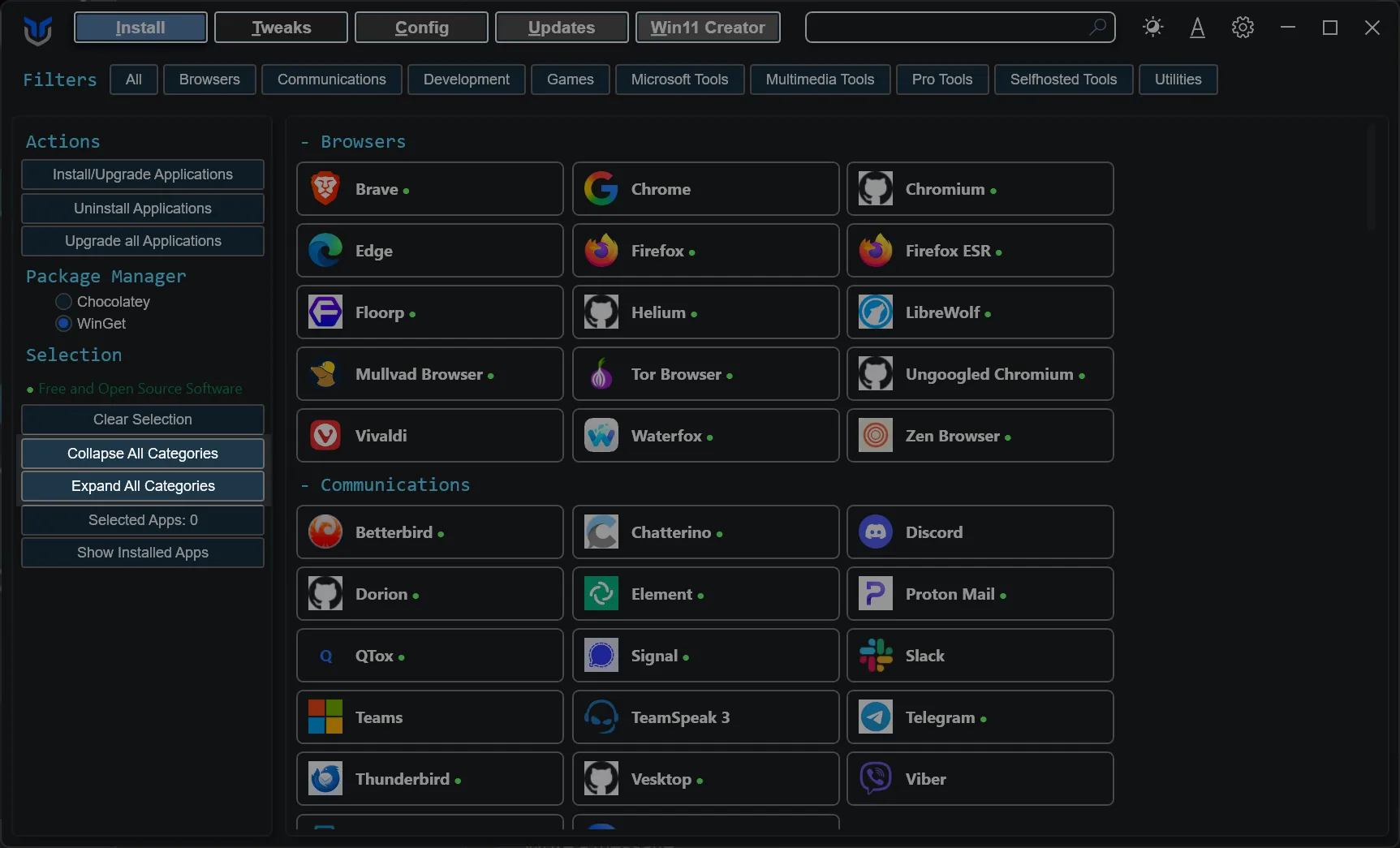
- Click a category chip at the top of the tab to show only that category. The chip stays highlighted while its filter is active.
- Hold
Ctrland click to add more categories to the filter, or to remove one again. - Click
All, or click the highlighted category again while it is the only one selected, to clear the filter. - Categories with matching results open while a filter is active. Ones that filtering opened for you go back to collapsed when you clear it, ones you opened yourself stay open.
- The
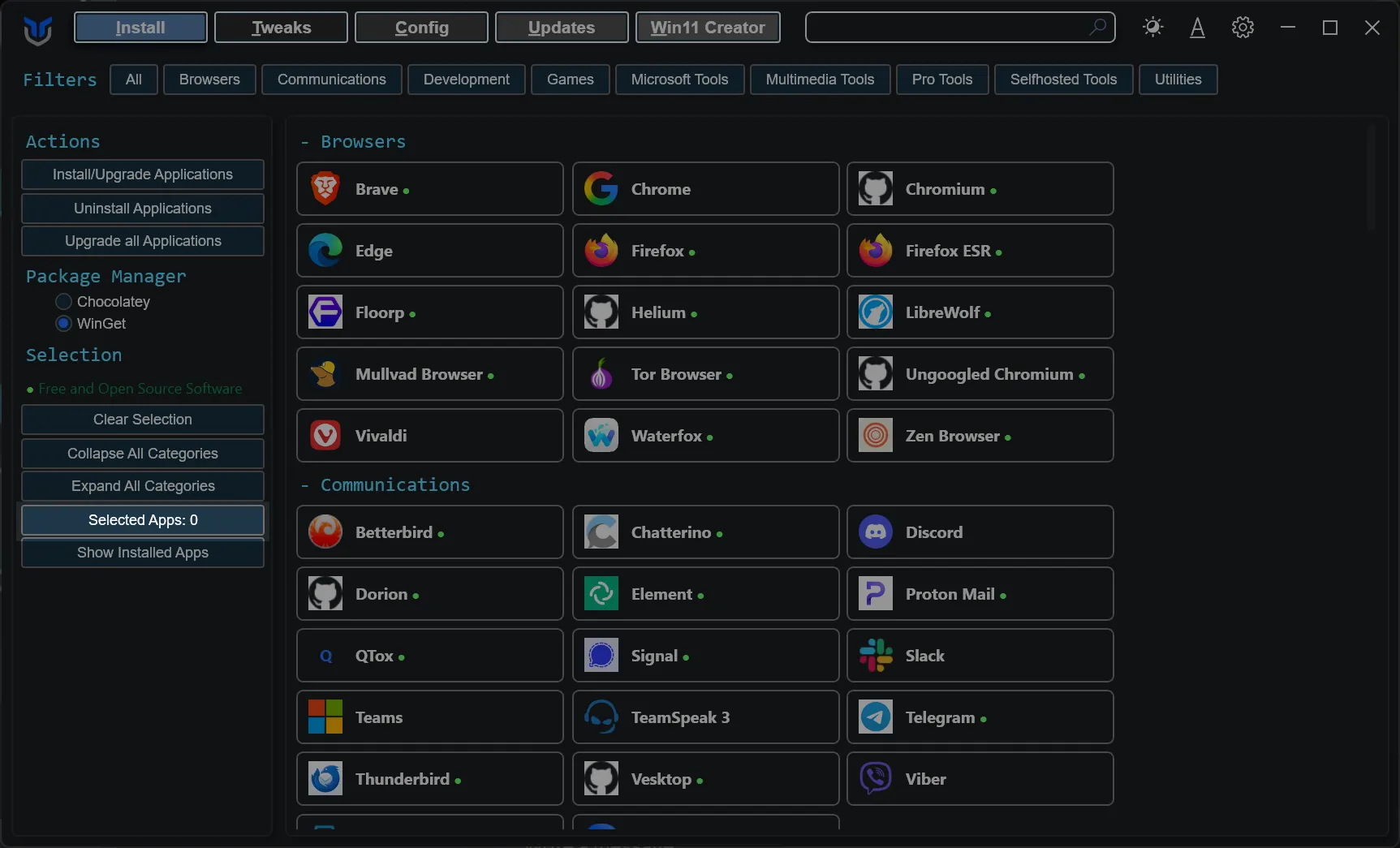
Selected Appscounter in the sidebar shows how many applications are currently selected. - Use it to keep track of your selection as you browse categories.
- Click the
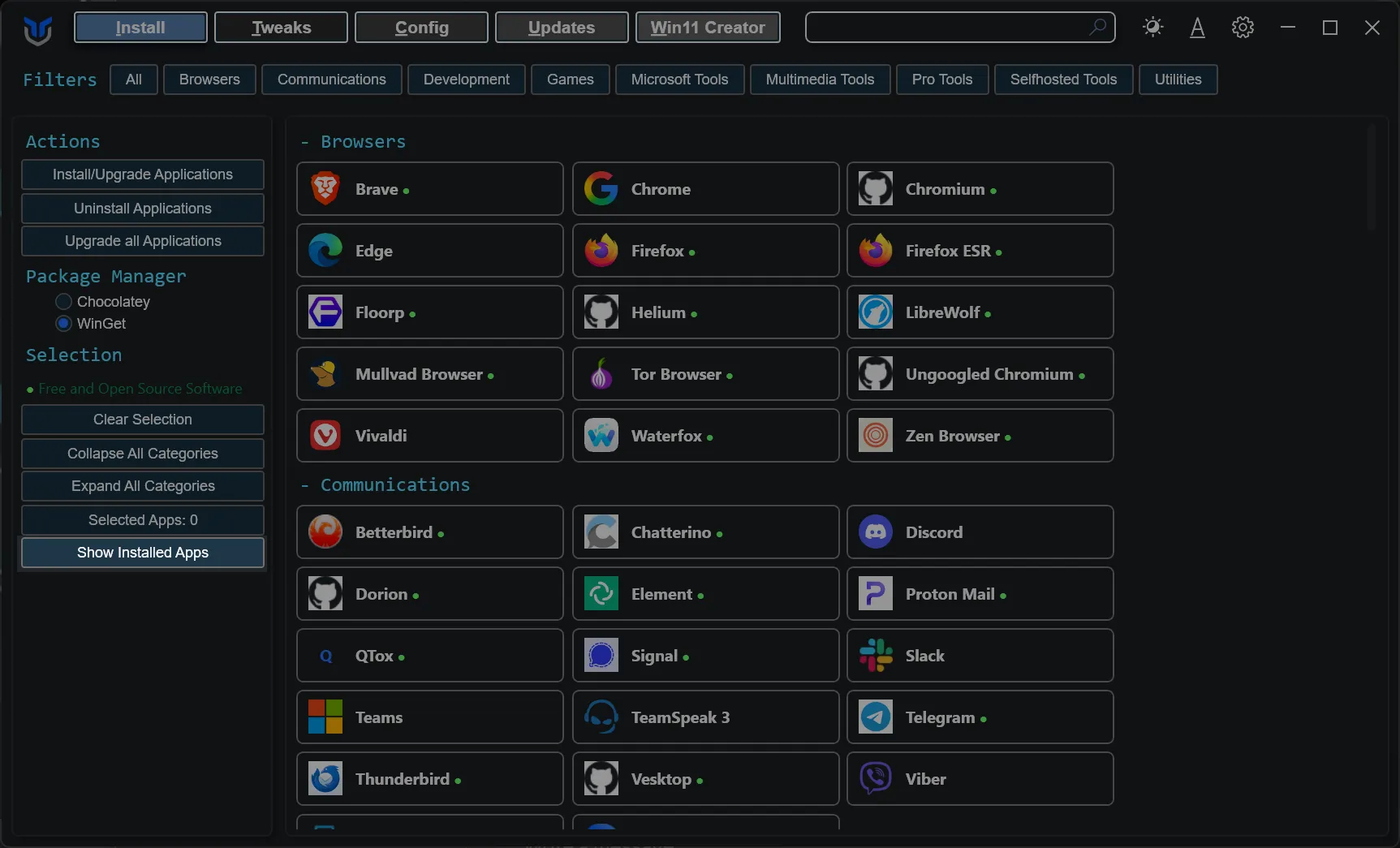
Show Installed Appsbutton. - This scans for and selects installed applications supported by WinGet.
When an app lists multiple package IDs, installation includes its listed dependencies. Uninstall removes only the selected app; a dependency is removed only when selected separately.
For an existing stable PowerShell 7 MSI installation, selecting PowerShell or using Upgrade All first checks the official PowerShell release and uses a signed MSI matching the installed executable architecture. MSI failures are reported separately; Upgrade All continues with the other WinGet packages. Installations without an MSI registration retain the normal WinGet behavior.
The direct MSI workaround conservatively skips PowerShell if WinGet reports any configured pins, or pin state cannot be checked. This avoids bypassing blocking or version-gating policies; Upgrade All still runs its normal WinGet operation, which honors those policies.
If multiple stable PowerShell MSI installations are detected (for example x86 and x64 side by side), the direct updater reports that configuration as unsupported before changing either installation. Upgrade each manually. MSI restart-required and restart-started results are reported explicitly.