
Win11 Creator
Using A$PECT UTILS’ Win11 Creator
Section titled “Using A$PECT UTILS’ Win11 Creator”A$PECT UTILS includes a built-in Win11 Creator tool that lets you take an official Windows 11 ISO and produce a customized, debloated version. The resulting image can remove telemetry, bypass hardware requirement checks, and enable local account setup out of the box. You can export the result as a new ISO file or write it directly to a USB drive.
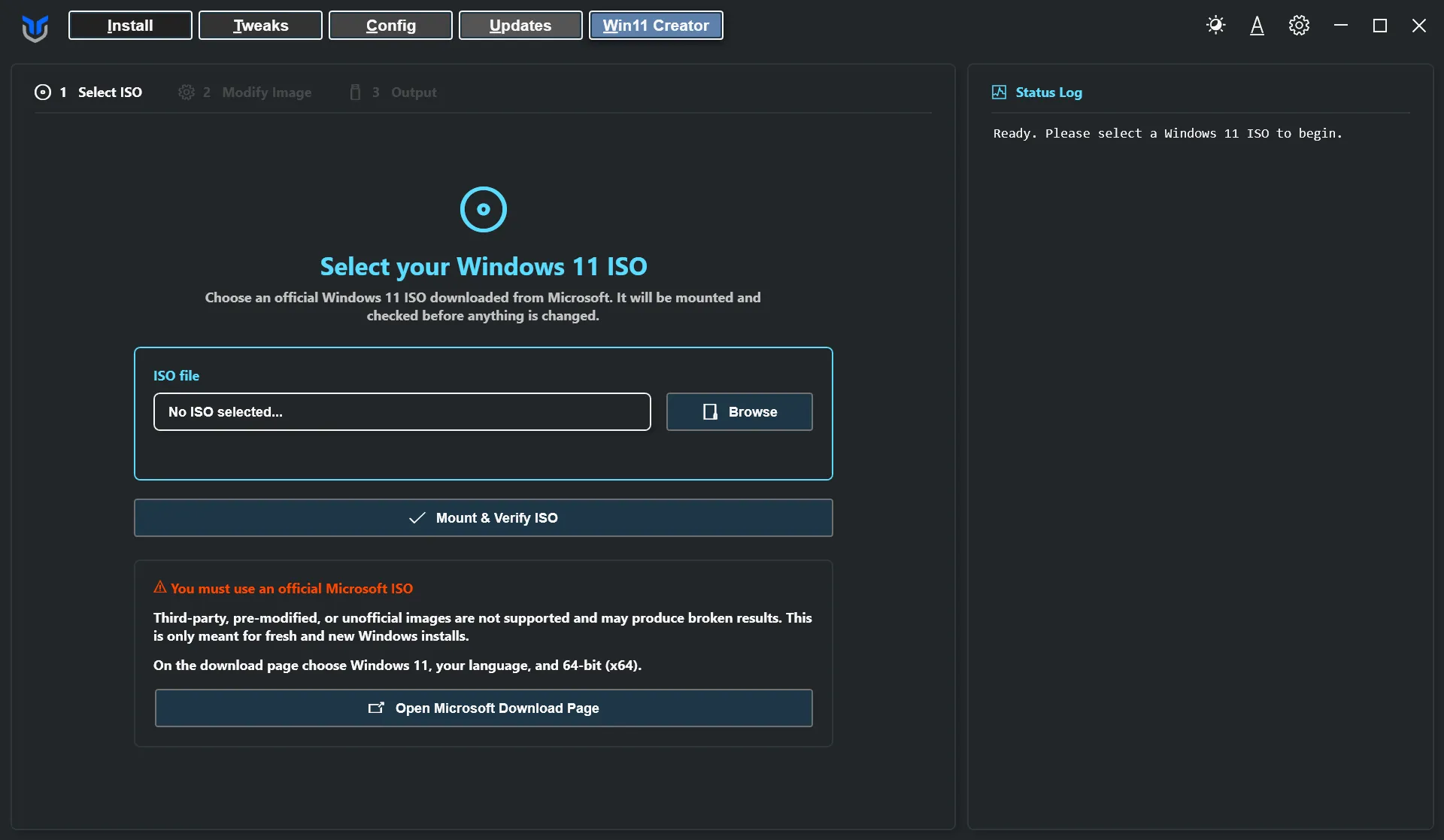
The tab is a three-step wizard. The step you are on is shown in the header row, and you can click an earlier step to go back to it until the image has been modified. The status log on the right stays visible throughout.
Step 1 — Select Your Official Windows 11 ISO
Section titled “Step 1 — Select Your Official Windows 11 ISO”- Open A$PECT UTILS and go to the Win11 Creator tab.
- Click Browse and select your official Windows 11 ISO file from Microsoft (must be 4 GB or larger). Custom or modified ISOs are not supported.
- The file path and size will appear on screen once selected.
- Click Mount & Verify ISO. A$PECT UTILS mounts the ISO, checks for a valid
install.wimorinstall.esd, and reads the available editions (Home, Pro, Enterprise, etc.).
Step 2 — Modify the Image
Section titled “Step 2 — Modify the Image”Once the ISO is verified, A$PECT UTILS moves to this step and shows the mounted drive and image file. Choose your edition from the dropdown — Pro is selected by default if available — and tick Inject current system drivers if you want them.
Then click Run Windows ISO Modification and Creator to start the customization process. A$PECT UTILS will:
App & Component Removal:
- Remove 19 bloat apps — Clipchamp, Teams, Dev Home, new Outlook, Bing apps, Solitaire, and more
- Uninstall OneDrive during first logon
System Customization:
- Bypass hardware checks — removes TPM, Secure Boot, CPU, RAM, and storage requirement enforcement so the ISO installs on unsupported hardware
- Enable local account setup — injects an
autounattend.xmlthat skips the Microsoft account screen during OOBE - Disable BitLocker and device encryption — removes startup overhead
- Disable Chat icon — removes chat taskbar button
- Pin the selected edition during setup — writes setup metadata so OEM firmware keys for a different edition do not force the installer down the wrong product-key path
Privacy & Telemetry Tweaks:
- Disable telemetry — advertising ID, tailored experiences, input personalization, speech online privacy
- Disable cloud content features — app suggestions, Microsoft Store recommendations
- Remove telemetry scheduled tasks — CEIP, Appraiser, WaaSMedic, and others
- Disable OneDrive folder backup — prevents automatic backups to cloud
- Prevent DevHome and Outlook post-setup installation
- Prevent Teams installation — blocks auto-install after OOBE
- Prevent new Outlook Mail app installation
- Disable Windows Update during OOBE — re-enabled automatically on first login
- Disable Copilot and search box suggestions
Optional: Driver Injection
- If enabled, A$PECT UTILS exports the drivers from your current system, injects boot-storage drivers into
boot.wim(Windows Setup, index 2), and injects eligible packages into the selectedinstall.wimimage. Stale duplicate packages are excluded before injection. Each remaining package is added separately, so one incompatible package does not stop the others. If a package fails, A$PECT UTILS discards the partial mount and retries the remaining packages against the original image. Check the live log for warnings: if every package fails, A$PECT UTILS keeps the originalinstall.wimand still produces the ISO.
A live log shows progress as each step completes. Without driver injection, A$PECT UTILS writes the setup changes in a few seconds after the ISO copy. With driver injection, this stage usually takes 10–20 minutes, depending on hardware. Keep A$PECT UTILS open until the log reports completion.
Step 3 — Export Your Result
Section titled “Step 3 — Export Your Result”Once the modification is complete, choose how to save your image:
- Click Save as an ISO File.
- Choose a save location (defaults to your Desktop as
Win11_Modified_yyyyMMdd.iso). - A$PECT UTILS builds a dual BIOS/UEFI bootable ISO using
oscdimg.exe.
- Click Write Directly to a USB Drive.
- Select your USB drive from the dropdown (click Refresh if it doesn’t appear).
- Click Erase & Write to USB and confirm the warning — all data on the drive will be permanently erased.
- A$PECT UTILS formats the drive as GPT with a single FAT32 partition (capped at 32 GB, splitting
install.wiminto.swmfiles if larger than 3.8 GB) and copies the modified Windows files.
Minimum USB size: 8 GB recommended. Writing takes 10–20 minutes.
Start Over (Optional)
Section titled “Start Over (Optional)”Click Start Over to delete the temporary working directory (~10–15 GB) and return the tool to its initial state, ready for a new ISO. You will be asked to confirm before anything is deleted.
What the Modified ISO Does Differently
Section titled “What the Modified ISO Does Differently”When you install Windows 11 from your modified ISO:
- No Microsoft account required — create a local account directly during setup
- No hardware checks — installs on machines without TPM 2.0, Secure Boot, or supported CPUs
- Dark mode enabled by default
- Empty taskbar and Start Menu — no pinned apps, Chat icon removed
- Windows Update disabled during OOBE — automatically re-enabled on first login to prevent setup interruptions
- BitLocker disabled — removes startup overhead on first boot
First-login restart
Section titled “First-login restart”After installation, A$PECT UTILS restarts Windows only after both the system and user customization scripts finish. If user customization has not signaled completion within five minutes after system customization finishes, the automatic restart is skipped. Check C:\Windows\Setup\Scripts\FirstLogon.log and %TEMP%\UserOnce.log before restarting manually.
Troubleshooting
Section titled “Troubleshooting”| Problem | Fix |
|---|---|
| “install.wim / install.esd was not found” | The ISO has no Windows installation image — download a fresh official ISO from Microsoft |
| “oscdimg.exe not found” | Run winget install -e --id Microsoft.OSCDIMG then retry |
| USB drive not showing up | Plug it in, wait a few seconds, then click Refresh |
| Driver injection seems stuck | WIM servicing can pause at a mount or commit. Allow 10–20 minutes depending on hardware, and check the live log before closing A$PECT UTILS |
| “Access Denied” error | Make sure A$PECT UTILS is running as Administrator |
| Driver injection warning | Review the live log for the named package. Other compatible packages continue; if none succeed, the ISO is created with the original install.wim |
| DISM error with an explanation in parentheses, e.g. “exit code 112 (Disk is full)” | A$PECT UTILS now explains common DISM failures in plain language. Free up disk space for a “Disk is full” error, or run A$PECT UTILS as Administrator for an “Access denied” error. If the code has no explanation, search the number on Microsoft’s DISM error code reference |
| “Setup has failed to validate the product key” | Recreate the ISO with the latest A$PECT UTILS. The creator now removes stale PID.txt, writes sources\ei.cfg, and pins the selected image in autounattend.xml so setup does not use an embedded OEM key for a different edition |
Additional Resources
Section titled “Additional Resources”- Download official Windows 11 media from Microsoft.
- If you prefer to write a finished ISO with another tool, common choices include Rufus or Ventoy.
Edition selection uses the language-independent edition ID from Windows image metadata, so localized Pro editions are selected correctly. If metadata cannot be read, Win11 Creator falls back to recognized English edition names; an unknown edition leaves setup edition configuration unset.