
Tweaks
Use the Tweaks tab to apply recommended Windows changes, review optional presets, and adjust a few supporting settings such as DNS and power plans. Start with a preset unless you already know which individual tweaks you want.
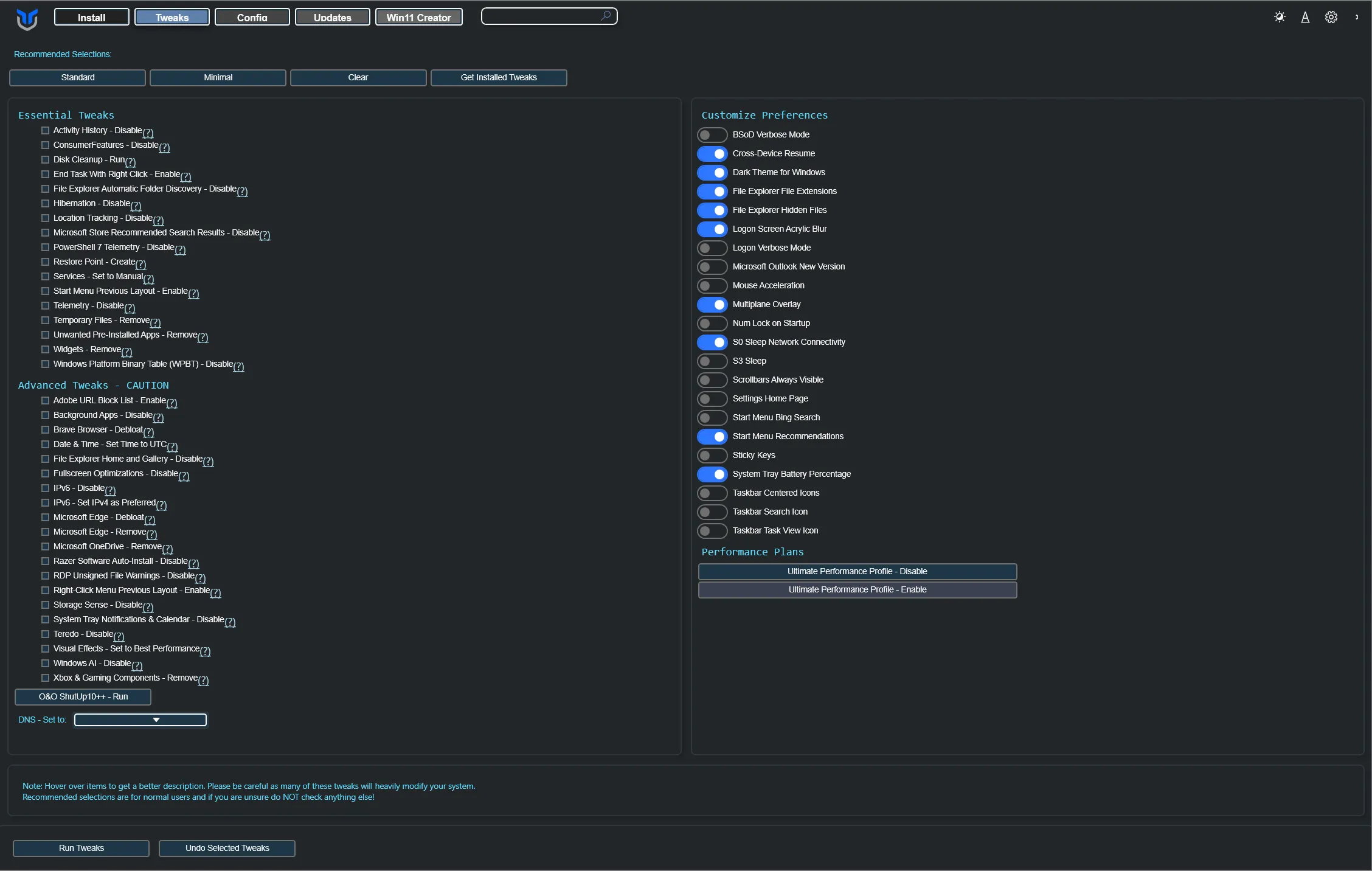
Recommended Selections
Section titled “Recommended Selections”Use the quick-selection buttons at the top of the Tweaks tab to speed up setup:
- Standard: Selects the recommended baseline set of tweaks for most users.
- Minimal: Selects a smaller, lower-impact set of common tweaks.
- Advanced: Selects a focused set of safer advanced tweaks. This preset intentionally skips restore point creation and cleanup tasks to avoid a long runtime.
- Clear: Clears all currently selected tweaks.
- Select Installed Tweaks: Best-effort detection for tweaks already applied to your system.
For checkbox tweaks and AppX entries, search matches entry descriptions and preset keys. The tooltip label “Preset key:” itself does not count as a match. Toggle search matches the displayed label and description.
Run Tweaks
Section titled “Run Tweaks”- Open the Tweaks tab: Navigate to the Tweaks tab in the application.
- Select Tweaks: Choose the tweaks you want to apply. You can use the presets available at the top for convenience.
- Run Tweaks: After selecting the desired tweaks, click Run Tweaks at the bottom of the screen.
When a listed service does not exist, A$PECT UTILS logs a warning and skips it. The remaining services and tweaks still run.
When Microsoft Edge is already absent, the Edge removal tweak reports it as not installed and skips the uninstaller instead of logging errors.
Apply and undo progress use each tweak’s displayed label, such as “Telemetry - Disable”. Session logs retain the preset key for troubleshooting.
Undo Tweaks
Section titled “Undo Tweaks”- Open the Tweaks tab: Go to the Tweaks tab located next to Install.
- Select Tweaks to Remove: Choose the tweaks you want to disable or remove.
- Undo Tweaks: Click Undo Selected Tweaks at the bottom of the screen to apply the changes.
Undo restores a service default only when its current startup type matches the type applied by the tweak. Other current startup types are preserved. A$PECT UTILS does not track whether a matching startup type was set before the tweak, so undo can also reset a service that already had that type.
AppX Packages
Section titled “AppX Packages”Open AppX Removal from the Tweaks tab to manage the listed Windows apps. Select one or more packages, then choose Install Selected or Remove Selected.
When installing a selected package, A$PECT UTILS first registers an existing local AppxManifest.xml. If no usable local manifest remains, A$PECT UTILS installs the package from the Microsoft Store through WinGet when a Store product ID is available.
A package without a usable local manifest or Store product ID is reported as failed. The remaining selected packages are still attempted, and the final summary lists failures.
During AppX installation or removal, the window-level progress bar shows the current package, completed package count, and overall progress. The Windows taskbar also reflects progress and the final success or failure state.
Essential Tweaks
Section titled “Essential Tweaks”Essential Tweaks are the safest starting point for most systems. They focus on lower-risk changes that improve usability, reduce noise, and avoid the more invasive changes found in advanced options.
Telemetry - Disable disables the Windows Error Reporting service (WerSvc) when its startup type is still the default Manual, and undo restores Manual. Removing an already absent feedback-frequency registry value is treated as complete rather than as an error.
Advanced Tweaks (CAUTION)
Section titled “Advanced Tweaks (CAUTION)”Services - Set to Manual changes service startup settings only. Disabling service-host splitting is a separate svchost.exe Splitting - Disable advanced tweak. It is recommended for low-performance systems with 12 GB of RAM or less to reduce service-host memory overhead. It can interfere with Xbox services; use it only when you understand that tradeoff. Undo restores the Windows client threshold of 0x380000, rather than a custom threshold you previously configured. If you applied the previous Services tweak, select svchost.exe Splitting - Disable and run Undo Selected Tweaks directly; do not apply the new tweak first. Restart Windows after changing this setting.
Advanced Tweaks are for users who understand the side effects of deeper Windows changes. Create a restore point first, review each item, and avoid treating the full advanced list as a one-click baseline.
Windows AI - Disable And Remove runs the Recall feature change through Windows PowerShell 5.1 to avoid DISM hangs and COM errors in Microsoft Store PowerShell 7. It suppresses automatic restarts and reports failures in the tweak log.
Microsoft OneDrive - Remove skips folder cleanup when the OneDrive path is empty or absent, and stops FileCoAuth and Explorer only when they are running. Nonempty OneDrive folders, including folders containing only hidden files, are kept.
O&O ShutUp10++
Section titled “O&O ShutUp10++”O&O ShutUp10++ can be launched from A$PECT UTILS with one click. It is a free privacy tool for Windows that helps users manage telemetry, update behavior, and app permission settings. The button downloads the tool (about 82 MB) each time it is clicked; hover over it to see this before starting, and, when the download size is available, the progress label shows it alongside the percentage.
Watch a walkthrough:
Use the DNS section to switch both IPv4 and IPv6 DNS providers without editing adapter settings manually. Choose the option that best matches your priority: speed, filtering, or privacy.
- Default: Uses the default DNS settings configured by your ISP or network.
- DHCP: Automatically acquires DNS settings from the DHCP server.
- Fastest: Compares TCP port 53 connection times to Google and Cloudflare, then applies the quicker provider. Filtering providers are excluded. If both probes fail, existing DNS settings are preserved. The scan takes up to about three seconds; connection time is only a rough latency estimate, not a DNS lookup or DNS-over-HTTPS performance test.
- Google: A reliable and fast DNS service provided by Google.
- Cloudflare: Known for speed and privacy, Cloudflare DNS is a popular choice for enhancing internet performance.
- Cloudflare_Malware: Provides additional protection by blocking malware sites.
- Cloudflare_Malware_Adult: Blocks both malware and adult content, offering more comprehensive filtering.
- Open_DNS: Offers customizable filtering and enhanced security features.
- Quad9: Focuses on security by blocking known malicious domains.
- AdGuard_Ads_Trackers: AdGuard DNS blocks ads, trackers, and other unwanted DNS requests. Visit the website and sign in for a dashboard, statistics, and additional server-side customization.
- AdGuard_Ads_Trackers_Malware_Adult: AdGuard DNS blocks ads, trackers, malware, and adult content, and enables Safe Search and Safe Mode where possible.
Customize Preferences
Section titled “Customize Preferences”Use Customize Preferences for smaller visual and behavior changes that do not fit the main tweak presets.
Performance Plans
Section titled “Performance Plans”Use Performance Plans to enable or remove the Ultimate Performance power profile.
Add and activate the Ultimate Performance Profile:
Section titled “Add and activate the Ultimate Performance Profile:”- Enables and activates the Ultimate Performance Profile to enhance system performance by minimizing latency and increasing efficiency.
Remove Ultimate Performance Profile:
Section titled “Remove Ultimate Performance Profile:”- Deactivates the Ultimate Performance Profile, changing the system to the Balanced Profile.